GoFetch is a free video downloader Chrome/Edge extension that saves web videos and live streams to your computer. It captures HLS (m3u8) streams, MP4, WebM, and MP3, and merges segments into a single ready-to-play MP4 file. It also works on other Chromium-based browsers.
An offline installation package for other Chromium-based browsers. How to install?
GoFetch is a free video downloader extension for Chrome, Edge and other Chromium-based browsers. As you browse, it automatically detects the video and audio resources loaded by the page — HLS (m3u8) streams, MP4, WebM and MP3 files — and lists them in the popup with size, duration and resolution, so you can preview and download the one you want with a single click.
GoFetch may be of great help to you, because of its features below
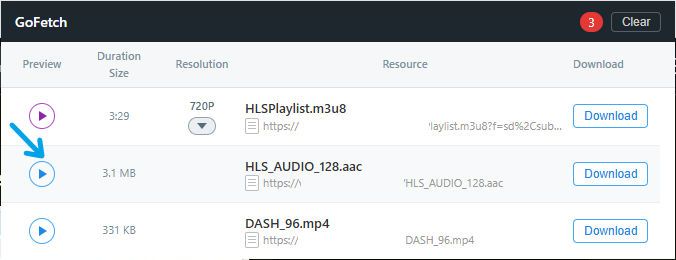
As the screenshot shows, direct-link media such as MP4, WebM and MP3 is listed in the popup with a blue play button, and every entry shows its real file size — like the 3.1 MB audio track and the 331 KB MP4 above. Click the play button to preview in place, or hit Download to save the file to your computer. GoFetch: Free Video Downloader Chrome/Edge Extension verifies the total size of these files before listing them, so the number you see is the number you get.
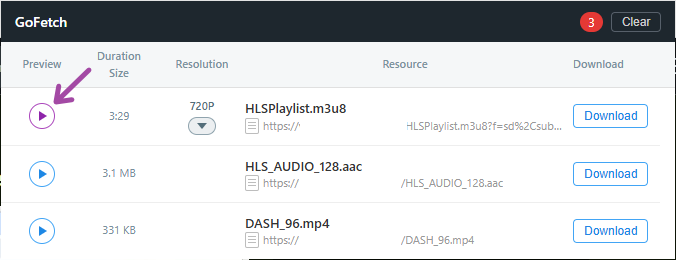
Streaming items carry a purple play button, like the HLSPlaylist.m3u8 entry in the screenshot. GoFetch: Free Video Downloader Chrome/Edge Extension downloads every segment of an HLS (m3u8) stream and remuxes them into a single MP4 that plays anywhere — no re-encoding, so it is fast and lossless. Playlists disguised as plain text are recognized too, and when audio and video are served separately, audio tracks in fMP4, TS, AAC and MP3 formats are merged with the picture into one file.
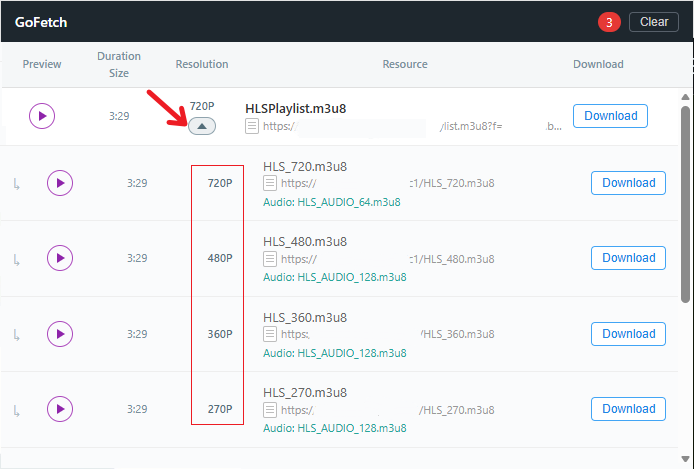
The screenshot shows a stream that offers several resolutions: click the small button under the resolution and the item expands to reveal every variant — 720P, 480P, 360P, 270P — each with its own download button. Duplicate entries pointing at the same content are deduplicated, so the list stays clean. And because GoFetch: Free Video Downloader Chrome/Edge Extension adapts to demuxed streams, each resolution also names the audio track (such as HLS_AUDIO_128.m3u8) that will be merged into the final MP4.
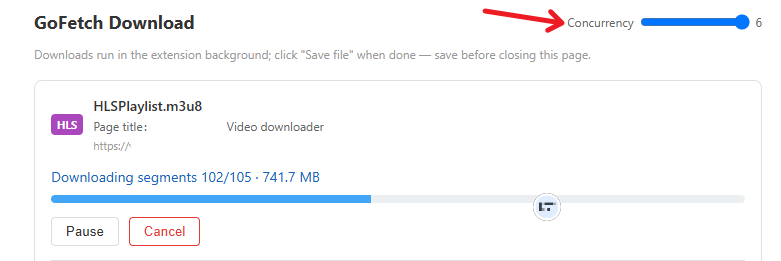
Segments are downloaded in parallel, and the slider in the screenshot tunes the concurrency from 1 to 6 in real time — here it is set to 6 while 102 of 105 segments (741.7 MB) are already done. Failed segments are retried automatically with backoff, so a shaky connection costs a retry, not the whole download. On typical streaming servers, GoFetch: Free Video Downloader Chrome/Edge Extension runs several times faster than the browser's built-in downloader.
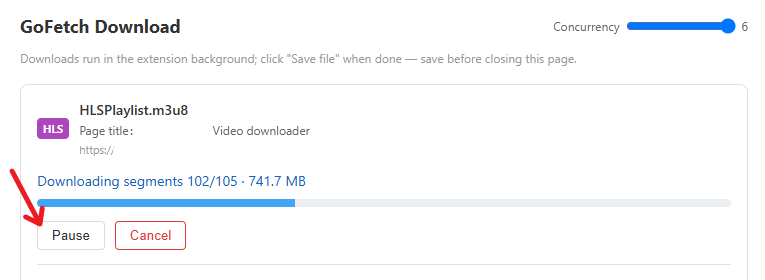
GB-sized HD videos are where GoFetch: Free Video Downloader Chrome/Edge Extension earns its keep. The Pause button in the screenshot is a real pause: the download state is saved down to the exact segment, so you can resume later even after the browser restarts. Multi-threading keeps big files moving fast, and the finished file stays backed up inside the extension until you click Save — closing a tab by accident does not lose your download.
Most video sites no longer serve a single file. They split content into segments, hide addresses behind playlists, or send audio and video separately. GoFetch: Free Video Downloader Chrome/Edge Extension was built for exactly this reality: it finds the real media a page loads and turns it into one file you can keep — free, and without leaving your browser.
While you browse, the extension quietly observes the network requests each page makes. HLS (m3u8) playlists are recognized instantly, and direct files such as MP4, WebM and MP3 are verified for their real size before being listed. Some sites disguise playlists as plain text or block outside tools with referer checks; GoFetch inspects suspicious responses using the page's own identity and carries the original headers when downloading, so these protected streams still work.
Downloading, remuxing and merging all run inside the extension on your own machine. Segments are converted to MP4 without re-encoding, which is both fast and lossless, and the pages on this site are only a control panel — they never make network requests themselves. Nothing you download is uploaded anywhere, and the headers captured for a tab are wiped as soon as that tab closes.
GoFetch: Free Video Downloader Chrome/Edge Extension does not crack encrypted streams: HLS protected by AES-128 or DRM is reported as unsupported instead of failing silently. YouTube is excluded entirely, in line with Chrome Web Store policy. One task runs at a time, and while HLS downloads support pause and segment-level resume, direct-file downloads cannot be paused yet.
A one-time setup after installation to keep the extension icon visible in the toolbar.
Install GoFetch from the Chrome Web Store or Edge Add-ons, then click the puzzle-shaped Extensions icon at the top-right of the browser toolbar.

In the Extensions menu, find GoFetch in the list and click the pin icon next to it.
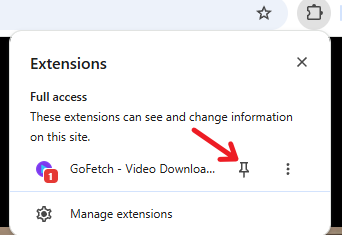
The GoFetch icon is now pinned. When videos are captured on a page, a numeric badge appears on the icon showing how many were found.

If the video URL can be captured, the downloading mode is preferred for the best speed.
Open the video page and play the video. A numeric badge on the GoFetch icon means resources were captured — if there is no number, refresh the page or keep playing.
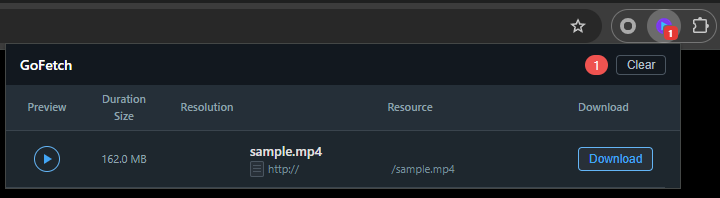
Click the GoFetch icon to open the popup, pick the target from the captured list by format, duration and size, then click its Download button.

The task runs in a new tab with live progress. You can pause, resume or cancel, and adjust concurrency and file name options. Do not close this tab while downloading.
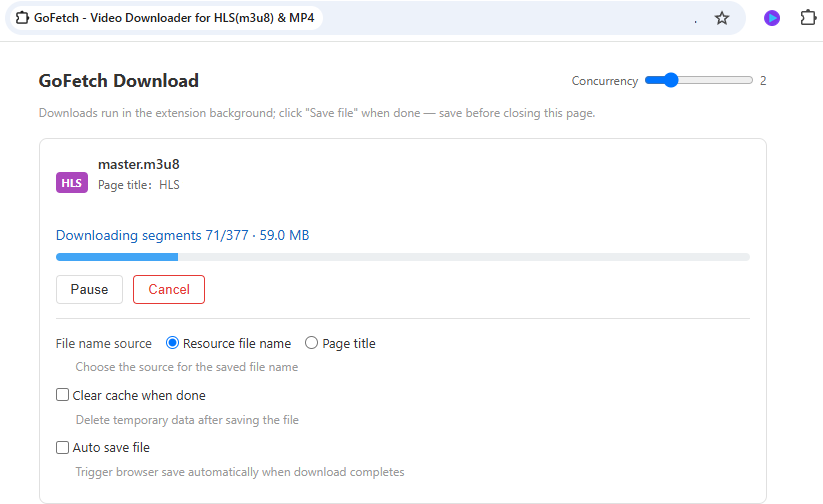
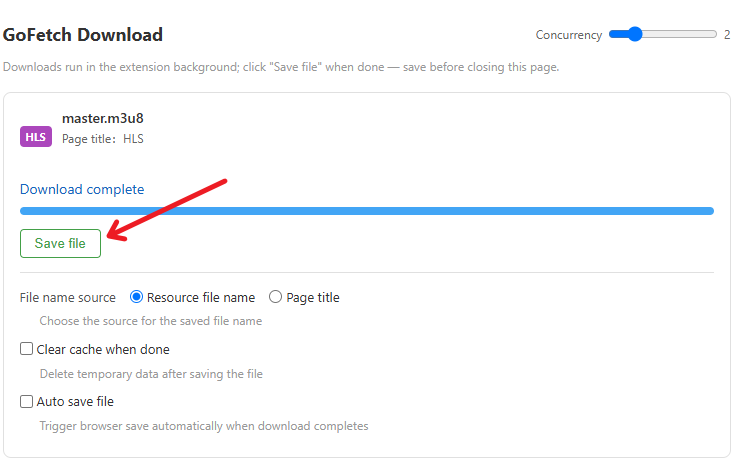
When the download completes, click "Save file" and the video is saved through the browser into your default download folder.